Volumes#
Volumes offer a high-performance alternative to cloud buckets for storing data. Unlike buckets, volumes are limited to a single region and cannot be accessed across regions and clouds.
Benefits of using volumes:
Performance: Volumes are generally faster than object stores, and SkyPilot lets you choose from different storage classes based on your performance requirements.
Data persistence: Volumes can persist data independently of task life cycles, making it easy to share data between different tasks (e.g., datasets, caches) or preserve results.
Size control: You can set volume size limits to manage costs and limit storage usage.
Volumes are currently supported on Kubernetes clusters and RunPod.
Quickstart#
Prepare a volume YAML file:
# volume.yaml
name: new-pvc
type: k8s-pvc
infra: k8s  # or `k8s/context` or `runpod`
size: 10Gi
Create the volume with
sky volumes apply volume.yaml:$ sky volumes apply volume.yaml Proceed to create volume 'new-pvc'? [Y/n]: Y Creating PVC: new-pvc-73ec42f2-5c6c4e
Mount the volume in your task YAML:
# task.yaml
volumes:
  /mnt/data: new-pvc  # The volume new-pvc will be mounted to /mnt/data

run: |
  echo "Hello, World!" > /mnt/data/hello.txt
Tip
For temporary or cache data that should only last for the lifetime of a SkyPilot cluster, use ephemeral volumes.
Managing volumes#
List all volumes with sky volumes ls:
$ sky volumes ls -v
NAME     TYPE     INFRA                         SIZE  USER   WORKSPACE  AGE   STATUS  LAST_USE             USED_BY   NAME_ON_CLOUD              STORAGE_CLASS           ACCESS_MODE
new-pvc  k8s-pvc  Kubernetes/nebius-mk8s-vol    1Gi   alice  default    8m    IN_USE  2025-06-24 10:18:32  training  new-pvc-73ec42f2-5c6c4e    csi-mounted-fs-path-sc  ReadWriteMany
Delete a volume with sky volumes delete:
$ sky volumes delete new-pvc
Proceed to delete volume 'new-pvc'? [Y/n]: Y
Deleting PVC: new-pvc-73ec42f2-5c6c4e
If the volume is in use, it will be marked as IN_USE and cannot be deleted.
You can also check the volumes in the SkyPilot dashboard.
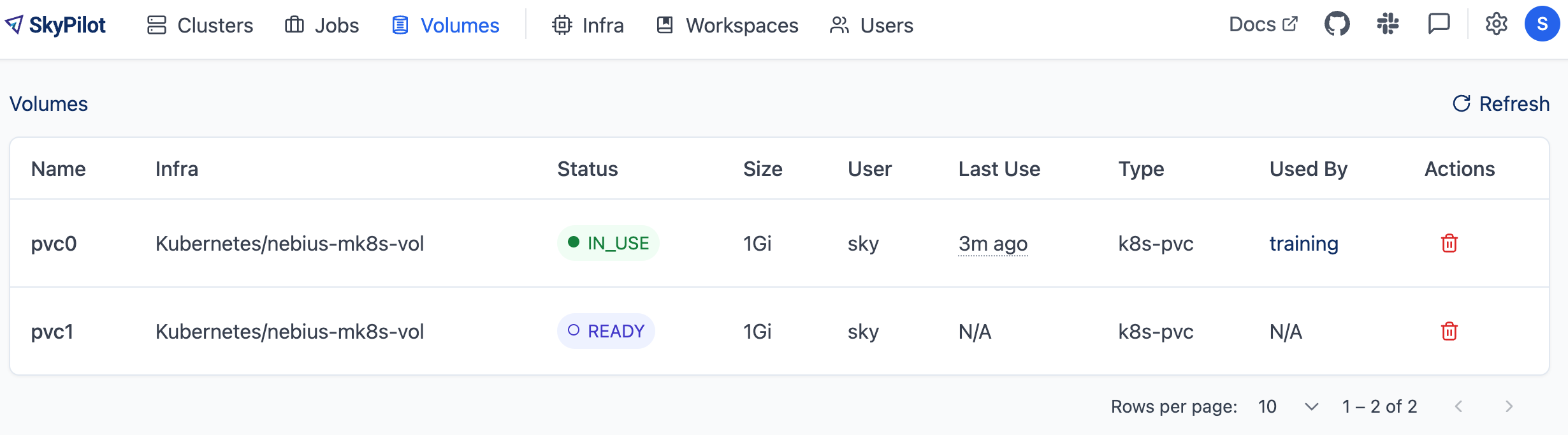
Volumes on Kubernetes#
In Kubernetes clusters, SkyPilot Volumes map to PVCs (Persistent Volume Claims).
PVCs can be backed by various storage backends, including block storage solutions (AWS EBS, GCP Persistent Disk) and distributed file systems (JuiceFS, Nebius shared file system, AWS EFS, GCP Filestore).
SkyPilot Volumes can be of two types:
Persistent volumes: Managed through
sky volumesCLI commands with lifecycle separate from SkyPilot clusters.Ephemeral volumes: Bound to SkyPilot cluster lifecycle, automatically created and deleted when
sky launchorsky downis run.
Feature |
||
|---|---|---|
Lifecycle |
Independent (managed via |
Bound to SkyPilot cluster |
Creation |
|
Automatic (in task YAML) |
Deletion |
|
Automatic (with cluster) |
Sharing across SkyPilot clusters |
Yes |
No (cluster-specific) |
Use case |
Long-term data, code, shared datasets |
Temporary storage, caches |
Tip
For advanced use cases, you can also mount PVCs, NFS, or hostPath volumes by overriding SkyPilot’s pod configs. See Advanced: Use Kubernetes configs to mount PVCs, NFS, or hostPath for details.
Persistent volumes#
Persistent volumes are created and managed independently using the sky volumes CLI commands described in the Quickstart and Managing volumes sections above.
Note
Persistent volumes are shared across users on a SkyPilot API server. A user can mount volumes created by other users. This is useful for sharing caches and data across users.
Volume YAML configuration options:
# volume.yaml
name: my-volume
type: k8s-pvc
infra: k8s  # or k8s/<context>
size: 10Gi

# Optional: add labels to the PVC
labels:
  key: value

# Optional: additional configuration
config:
  namespace: default
  storage_class_name: csi-mounted-fs-path-sc
  access_mode: ReadWriteMany  # Required for multi-node clusters
Note
For multi-node clusters, volumes are mounted to all nodes. You must set
config.access_modetoReadWriteManyand use astorage_class_namethat supports this access mode. Otherwise, SkyPilot will fail to launch the cluster.To mount a volume to all clusters or jobs by default, use the admin policy to inject the volume path into the task YAML. See Add volumes to all tasks for details.
Using existing PVCs#
The use_existing: true option allows you to reference PVCs that already exist in your Kubernetes cluster without creating new ones. This is useful in two scenarios:
1. User-created PVCs
If you have an existing PVC created outside SkyPilot, set name to the exact PVC name:
# Reference an existing PVC by its exact name
name: my-existing-pvc  # Must match the exact PVC name in Kubernetes
type: k8s-pvc
infra: k8s
use_existing: true
2. Migrating volumes across API servers
When using SkyPilot volumes across different API servers (e.g., switching between local and remote API servers), you can use the same volume YAML without knowing the internal PVC name:
# volume.yaml - works across different API servers
name: myvolume
type: k8s-pvc
infra: k8s
use_existing: true
SkyPilot finds the existing PVC by looking up:
A PVC with the exact name
myvolumeA PVC with the label
skypilot-name=myvolume(for SkyPilot-created PVCs)
This allows you to:
# On API server A: Create a new volume
$ sky volumes apply volume.yaml

# On API server B: Reference the same PVC
$ sky volumes apply volume.yaml
# SkyPilot finds the existing PVC by its skypilot-name label
Using existing file systems#
If you have an existing file system (e.g., AWS FSx for Lustre) accessible in your Kubernetes cluster, you can use it as a SkyPilot volume. This requires creating a PersistentVolume (PV) backed by the file system and a StorageClass with a CSI driver for the file system.
The following example walks through the setup using AWS FSx for Lustre.
Step 1: Install the CSI driver and create a StorageClass
Install the CSI driver for your file system and create the corresponding StorageClass in your Kubernetes cluster. For AWS FSx for Lustre, see the AWS documentation.
Step 2: Create a PersistentVolume for the existing file system
Create a PV that maps to your file system. The storageClassName must match the StorageClass created in Step 1:
apiVersion: v1
kind: PersistentVolume
metadata:
  name: fsx-pv
spec:
  capacity:
    storage: 1200Gi
  volumeMode: Filesystem
  accessModes:
    - ReadWriteMany
  persistentVolumeReclaimPolicy: Retain
  csi:
    driver: fsx.csi.aws.com
    volumeHandle: fs-08d8c731a01074d61
    volumeAttributes:
      dnsname: fs-08d8c731a01074d61.fsx.us-east-1.amazonaws.com
      mountname: okdipamv
  storageClassName: fsx-sc
Tip
The values for csi.volumeHandle, csi.volumeAttributes.dnsname, and csi.volumeAttributes.mountname can be retrieved with aws fsx describe-file-systems.
Step 3: Create a SkyPilot volume
Create a SkyPilot volume. Its config.storage_class_name and config.access_mode must match the PV, and its size must be less than or equal to the PV’s capacity. SkyPilot will create a PVC with these specifications, and the Kubernetes CSI driver will automatically bind it to the matching PV:
name: fsx-volume
type: k8s-pvc
infra: k8s
size: 1200Gi
config:
  storage_class_name: fsx-sc
  access_mode: ReadWriteMany
You can then mount the volume in your task YAML as described in Quickstart.
Mounting a subdirectory of a volume#
You can mount a specific subdirectory of a persistent volume using the sub_path option. This maps to Kubernetes’ subPath field on the volume mount.
When using sub_path, the volume must be specified using the dict form with the name key:
# task.yaml
resources:
  infra: kubernetes

volumes:
  /mnt/models:
    name: my-volume
    sub_path: models/v1  # Only mount the models/v1 subdirectory

run: |
  ls /mnt/models  # Contents of my-volume/models/v1
This is useful when a single volume contains multiple datasets or projects and you want to mount only a specific subdirectory to the container.
Note
sub_path is only supported for persistent volumes (not ephemeral volumes).
Ephemeral volumes#
Unlike persistent volumes, which must be managed independently via sky volumes CLI commands, ephemeral volumes are automatically created when a cluster is launched via sky launch and deleted when the cluster is terminated via sky down or autodowned.
Automatic lifecycle management: No need to manually create or delete volumes
Cluster-bound: Created with the cluster and deleted when the cluster is terminated
Simplified usage: Defined directly in the task YAML with the cluster configuration
Ideal for temporary storage: caches, intermediate results, or any data that should only exist for the duration of a cluster’s lifetime
To use an ephemeral volume, simply specify the size field in the volumes section of your task YAML:
# task.yaml
resources:
  infra: kubernetes
  ...

volumes:
  /mnt/cache:
    size: 100Gi
    #labels:        # optional
    #  env: production
    #config:        # optional
    #  storage_class_name: csi-mounted-fs-path-sc  # optional
    #  access_mode: ReadWriteMany                  # optional

run: |
  echo "Using ephemeral volumes"
  df -h /mnt/cache
  echo "data" > /mnt/cache/temp.txt
When you launch the cluster with sky launch, the ephemeral volumes will be automatically created:
$ sky launch -c my-cluster task.yaml
# Ephemeral volumes are created automatically
$ sky volumes ls
Kubernetes PVCs:
NAME                       TYPE     INFRA                      SIZE  USER  WORKSPACE  AGE   STATUS  LAST_USE             USED_BY                  IS_EPHEMERAL
my-cluster-43dbb4ab-2f74bf k8s-pvc  Kubernetes/nebius-mk8s-vol 100Gi alice default    58m   IN_USE  2025-11-17 14:30:18  my-cluster-43dbb4ab-head True
Note
For multi-node clusters, ephemeral volumes are mounted to all nodes. You must configure config.access_mode to ReadWriteMany and use a storage_class_name that supports the ReadWriteMany access mode. Otherwise, SkyPilot will fail to launch the cluster.
When you terminate the cluster, the ephemeral volumes are automatically deleted:
$ sky down my-cluster
# Cluster and its ephemeral volumes are deleted
Advanced: Use Kubernetes configs to mount PVCs, NFS, or hostPath#
In addition to using SkyPilot volumes, you can also mount Kubernetes volumes (PVCs, NFS, hostPath) by overriding SkyPilot’s pod_config. This is useful for:
Mounting a PVC with additional configurations not supported by SkyPilot volumes (e.g.,
fsGroup,fsGroupChangePolicy).Specifying a global (per Kubernetes context) volume to be mounted on all SkyPilot clusters.
Accessing shared storage such as NFS or local high-performance storage like NVMe drives.
Volume mounting can be done directly in the task YAML on a per-task basis, or globally for all tasks in SkyPilot config.
Mount a NFS share that’s already mounted on the Kubernetes nodes.
Per-task configuration:
# task.yaml
run: |
  echo "Hello, world!" > /mnt/nfs/hello.txt
  ls -la /mnt/nfs
config:
  kubernetes:
    pod_config:
      spec:
        containers:
          - volumeMounts:
              - mountPath: /mnt/nfs
                name: my-host-nfs
        volumes:
          - name: my-host-nfs
            hostPath:
              path: /path/on/host/nfs
              type: Directory
Global configuration:
# SkyPilot config
kubernetes:
  pod_config:
    spec:
      containers:
        - volumeMounts:
            - mountPath: /mnt/nfs
              name: my-host-nfs
      volumes:
        - name: my-host-nfs
          hostPath:
            path: /path/on/host/nfs
            type: Directory
Mount a NFS share using Kubernetes’ native NFS volume support.
Per-task configuration:
# task.yaml
run: |
  echo "Hello, world!" > /mnt/nfs/hello.txt
  ls -la /mnt/nfs
config:
  kubernetes:
    pod_config:
      spec:
        containers:
          - volumeMounts:
              - mountPath: /mnt/nfs
                name: nfs-volume
        volumes:
          - name: nfs-volume
            nfs:
              server: nfs.example.com
              path: /shared
              readOnly: false
Global configuration:
# SkyPilot config
kubernetes:
  pod_config:
    spec:
      containers:
        - volumeMounts:
            - mountPath: /mnt/nfs
              name: nfs-volume
      volumes:
        - name: nfs-volume
          nfs:
            server: nfs.example.com
            path: /shared
            readOnly: false
Mount local NVMe storage that’s already mounted on the Kubernetes nodes.
Per-task configuration:
# task.yaml
run: |
  echo "Hello, world!" > /mnt/nvme/hello.txt
  ls -la /mnt/nvme
config:
  kubernetes:
    pod_config:
      spec:
        containers:
          - volumeMounts:
              - mountPath: /mnt/nvme
                name: nvme
        volumes:
          - name: nvme
            hostPath:
              path: /path/on/host/nvme
              type: Directory
Global configuration:
# SkyPilot config
kubernetes:
  pod_config:
    spec:
      containers:
        - volumeMounts:
            - mountPath: /mnt/nvme
              name: nvme
      volumes:
        - name: nvme
          hostPath:
            path: /path/on/host/nvme
            type: Directory
Mount a PVC with additional configurations like fsGroup and fsGroupChangePolicy.
Per-task configuration:
# task.yaml
run: |
  echo "Hello, world!" > /mnt/data/hello.txt
  ls -la /mnt/data
config:
  kubernetes:
    pod_config:
      spec:
        securityContext:
          fsGroup: 1000
          fsGroupChangePolicy: OnRootMismatch
        containers:
          - volumeMounts:
              - mountPath: /mnt/data
                name: my-pvc
        volumes:
          - name: my-pvc
            persistentVolumeClaim:
              claimName: my-pvc
Global configuration:
# SkyPilot config
kubernetes:
  pod_config:
    spec:
      securityContext:
        fsGroup: 1000
        fsGroupChangePolicy: OnRootMismatch
      containers:
        - volumeMounts:
            - mountPath: /mnt/data
              name: my-pvc
      volumes:
        - name: my-pvc
          persistentVolumeClaim:
            claimName: my-pvc
Mount different PVCs per context:
If you want to mount different PVCs for different Kubernetes contexts, you can set the allowed_contexts and context_configs in the advanced config.
# SkyPilot config
kubernetes:
  allowed_contexts:
    - context1
    - context2
  context_configs:
    context1:
      pod_config:
        spec:
          securityContext:
            fsGroup: 1000
            fsGroupChangePolicy: OnRootMismatch
          containers:
            - volumeMounts:
                - mountPath: /mnt/data
                  name: my-pvc
          volumes:
            - name: my-pvc
              persistentVolumeClaim:
                claimName: pvc1
    context2:
      pod_config:
        spec:
          securityContext:
            fsGroup: 1000
            fsGroupChangePolicy: OnRootMismatch
          containers:
            - volumeMounts:
                - mountPath: /mnt/data
                  name: my-pvc
          volumes:
            - name: my-pvc
              persistentVolumeClaim:
                claimName: pvc2
Note
The kubernetes.pod_config in the advanced config applies to every cluster launched on Kubernetes. To mount different PVCs per cluster, set the kubernetes.pod_config in the task YAML file as described in the per-task configuration. Refer to Kubernetes volume mounts and volumes documentation for more details.
When creating a node group on the Nebius console, attach your desired shared file system to the node group (Create Node Group -> Attach shared filesystem):
Ensure
Auto mountis enabled.Note the
Mount tag(e.g.filesystem-d0).
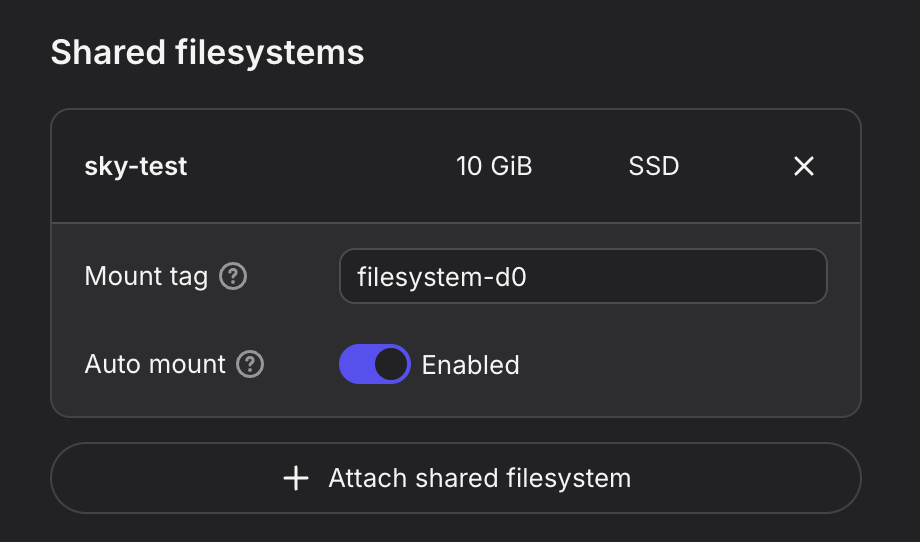
Nebius will automatically mount the shared filesystem to hosts in the node group. You can then use a hostPath volume to mount the shared filesystem to your SkyPilot pods.
Per-task configuration:
# task.yaml
run: |
  echo "Hello, world!" > /mnt/nfs/hello.txt
  ls -la /mnt/nfs
config:
  kubernetes:
    pod_config:
      spec:
        containers:
          - volumeMounts:
              - mountPath: /mnt/nfs
                name: nebius-sharedfs
        volumes:
          - name: nebius-sharedfs
            hostPath:
              path: /mnt/<mount_tag> # e.g. /mnt/filesystem-d0
              type: Directory
Global configuration:
# SkyPilot config
kubernetes:
  pod_config:
    spec:
      containers:
        - volumeMounts:
            - mountPath: /mnt/nfs
              name: nebius-sharedfs
      volumes:
        - name: nebius-sharedfs
          hostPath:
            path: /mnt/<mount_tag> # e.g. /mnt/filesystem-d0
            type: Directory
Note
When using hostPath volumes, the specified paths must already exist on the Kubernetes node where the pod is scheduled.
For NFS mounts using hostPath, ensure the NFS mount is already configured on all Kubernetes nodes.
Advanced: Installing additional storage backends#
SkyPilot volumes work with any Kubernetes StorageClass already available in your cluster. If your cluster doesn’t have a StorageClass that meets your needs, you can optionally install one.
Below are example configurations for setting up shared filesystems like JuiceFS or Nebius Shared Filesystem as SkyPilot volumes. Any storage backend that provides a Kubernetes StorageClass will work.
Installing additional storage backends - JuiceFS, Nebius Shared Filesystem
To use JuiceFS as a SkyPilot volume:
Install the JuiceFS CSI driver on your Kubernetes cluster. Follow the official installation guide for detailed instructions.
Verify the driver installation - Confirm that the JuiceFS CSI Driver pods are running:
$ kubectl -n kube-system get pod -l app.kubernetes.io/name=juicefs-csi-driver
NAME                       READY   STATUS    RESTARTS   AGE
juicefs-csi-controller-0   2/2     Running   0          10m
juicefs-csi-node-8rd96     3/3     Running   0          10m
Set up JuiceFS storage and create a SkyPilot volume - You can use either dynamic provisioning (with a StorageClass) or static provisioning (with a pre-created PV):
Create a StorageClass for dynamic provisioning. Refer to the JuiceFS StorageClass guide for details.
$ kubectl get storageclass juicefs-sc
NAME         PROVISIONER       RECLAIMPOLICY   VOLUMEBINDINGMODE   ALLOWVOLUMEEXPANSION   AGE
juicefs-sc   csi.juicefs.com   Retain          Immediate           false                  10m
Create a SkyPilot volume YAML referencing the StorageClass:
# juicefs-volume.yaml
name: juicefs-volume
type: k8s-pvc
infra: k8s
size: 100Gi
config:
  storage_class_name: juicefs-sc
  access_mode: ReadWriteMany
$ sky volumes apply juicefs-volume.yaml
Create a PersistentVolume and PVC manually. Refer to the JuiceFS static provisioning guide for details.
$ kubectl get pv juicefs-pv
NAME         CAPACITY   ACCESS MODES   RECLAIM POLICY   STATUS   CLAIM                 STORAGECLASS   AGE
juicefs-pv   100Gi      RWX            Retain           Bound    default/juicefs-pvc                  10m

$ kubectl get pvc juicefs-pvc
NAME          STATUS   VOLUME       CAPACITY   ACCESS MODES   STORAGECLASS   AGE
juicefs-pvc   Bound    juicefs-pv   100Gi      RWX                           10m
Create a SkyPilot volume YAML with use_existing: true to reference the existing PVC:
# juicefs-volume.yaml
name: juicefs-volume
type: k8s-pvc
infra: k8s
use_existing: true
config:
  access_mode: ReadWriteMany
$ sky volumes apply juicefs-volume.yaml
Mount the volume to SkyPilot task in your SkyPilot YAML:
# task.yaml
num_nodes: 2

volumes:
  # Mount the JuiceFS volume to /mnt/data across all nodes
  /mnt/data: juicefs-volume

run: |
  # Verify the volume is mounted and accessible
  df -h /mnt/data
  ls -la /mnt/data
# Launch the cluster with the JuiceFS volume
$ sky launch -c juicefs-cluster task.yaml
To use Nebius shared file system as a SkyPilot volume using the CSI driver. For a simpler setup, we recommend using the hostPath-based method described above, which mounts the filesystem directly from the host without requiring a CSI driver.
Set up the Nebius filesystem infrastructure by following the official documentation:
Verify the storage class - Confirm that the
csi-mounted-fs-path-scstorage class has been created:
$ kubectl get storageclass
NAME                     PROVISIONER                    RECLAIMPOLICY   VOLUMEBINDINGMODE      ALLOWVOLUMEEXPANSION   AGE
csi-mounted-fs-path-sc   mounted-fs-path.csi.nebius.ai  Delete          WaitForFirstConsumer   false                  10m
Create a SkyPilot volume for Nebius file system with a volume YAML:
# nebius-volume.yaml
name: nebius-pvc
type: k8s-pvc
infra: k8s
size: 100Gi
config:
  storage_class_name: csi-mounted-fs-path-sc
  access_mode: ReadWriteMany
$ sky volumes apply nebius-volume.yaml
Mount the volume to SkyPilot task in your SkyPilot YAML:
# task.yaml
num_nodes: 2

volumes:
  # Mount the Nebius shared filesystem to /mnt/data across all nodes
  /mnt/data: nebius-pvc

run: |
  # Verify the volume is mounted and accessible
  df -h /mnt/data
  ls -la /mnt/data
# Launch the cluster with the Nebius volume
$ sky launch -c nebius-cluster task.yaml
Volumes on RunPod#
RunPod Network Volumes provide persistent storage that can be mounted into pods on RunPod. SkyPilot supports creating and managing RunPod network volumes via the same three commands:
sky volumes apply: Create a new network volumesky volumes ls: List all volumessky volumes delete: Delete a volume
Notes specific to RunPod:
inframust specify the RunPod data center (zone), e.g.runpod/CA/CA-MTL-1.Volume name length is limited (max 30 characters).
Labels are not currently supported for RunPod volumes.
Quickstart#
Prepare a volume YAML file:
# runpod-volume.yaml
name: rpvol
type: runpod-network-volume
infra: runpod/CA/CA-MTL-1  # DataCenterId (zone)
size: 100Gi                # GiB
# If the RunPod network volume already exists, set `use_existing` to true and
# set the `name` to the existing RunPod network volume name
# use_existing: true
Create the volume with
sky volumes apply runpod-volume.yaml:$ sky volumes apply runpod-volume.yaml Proceed to create volume 'rpvol'? [Y/n]: Y Created RunPod network volume rpvol-43dbb4ab-15e906 (id=5w6ecp2w9n)
Mount the volume in your task YAML:
# task.yaml
volumes:
  /workspace: rpvol

run: |
  echo "Hello, RunPod!" > /workspace/hello.txt
Managing volumes#
Same as Kubernetes volumes, refer to Managing volumes for more details.
Volumes on SSH node pools#
With SSH node pools, you can mount host volumes or directories into SkyPilot clusters and managed jobs. See Volumes on SSH node pools for details.